

 Set up docs MCP
GCP PSC is available in the Scale and Enterprise plans. To upgrade, visit the plans page in the cloud console.
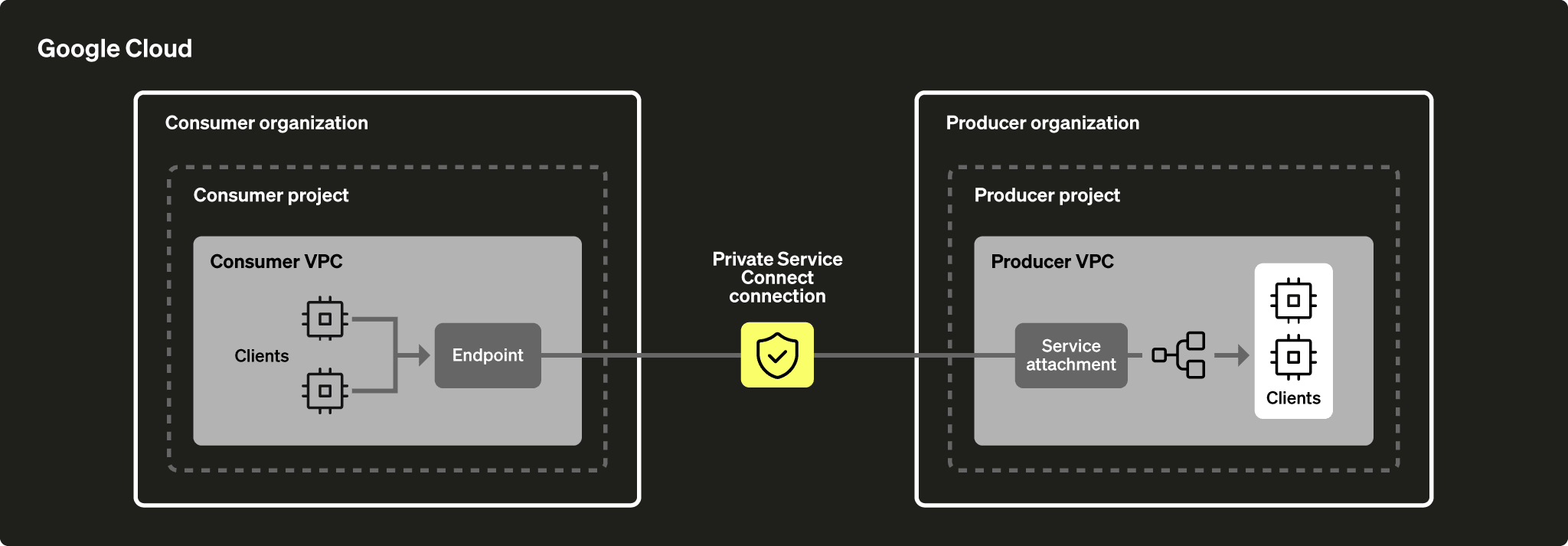
Private Service Connect (PSC) is a Google Cloud networking feature that allows consumers to access managed services privately inside their virtual private cloud (VPC) network. Similarly, it allows managed service producers to host these services in their own separate VPC networks and offer a private connection to their consumers.
Service producers publish their applications to consumers by creating Private Service Connect services. Service consumers access those Private Service Connect services directly through one of these Private Service Connect types.
Important considerations for using Private Service Connect Global Access:
- Regions utilizing Global Access must belong to the same VPC.
- Global Access must be explicitly enabled at the PSC level (refer to the screenshot below).
- Ensure that your firewall settings don’t block access to PSC from other regions.
- Be aware that you may incur GCP inter-region data transfer charges.
Cross-region connectivity isn’t supported. The producer and consumer regions must be the same. However, you can connect from other regions within your VPC by enabling Global Access at the Private Service Connect (PSC) level.
Complete the following steps to enable GCP PSC:
- Obtain GCP service attachment for Private Service Connect.
- Create a service endpoint.
- Add “Endpoint ID” to ClickHouse Cloud service.
- Add “Endpoint ID” to ClickHouse service allow list.
Attention
ClickHouse attempts to group your services to reuse the same published PSC endpoint within the GCP region. However, this grouping isn’t guaranteed, especially if you spread your services across multiple ClickHouse organizations. If you already have PSC configured for other services in your ClickHouse organization, you can often skip most of the steps because of that grouping and proceed directly to the final step: Add “Endpoint ID” to ClickHouse service allow list.
Find Terraform examples here.
Before you get started
You’ll need to retrieve information about your ClickHouse Cloud service. You can do this either via the ClickHouse Cloud console or the ClickHouse API. If you’re going to use the ClickHouse API, please set the following environment variables before proceeding:
REGION=<Your region code using the GCP format, for example: us-central1>
PROVIDER=gcp
KEY_ID=<Your ClickHouse key ID>
KEY_SECRET=<Your ClickHouse key secret>
ORG_ID=<Your ClickHouse organization ID>
SERVICE_NAME=<Your ClickHouse service name>
You can create a new ClickHouse Cloud API key or use an existing one.
Get your ClickHouse INSTANCE_ID by filtering by region, provider and service name:
INSTANCE_ID=$(curl --silent --user "${KEY_ID:?}:${KEY_SECRET:?}" \
"https://api.clickhouse.cloud/v1/organizations/${ORG_ID:?}/services" | \
jq ".result[] | select (.region==\"${REGION:?}\" and .provider==\"${PROVIDER:?}\" and .name==\"${SERVICE_NAME:?}\") | .id " -r)Obtain GCP service attachment and DNS name for Private Service Connect
Option 1: ClickHouse Cloud console
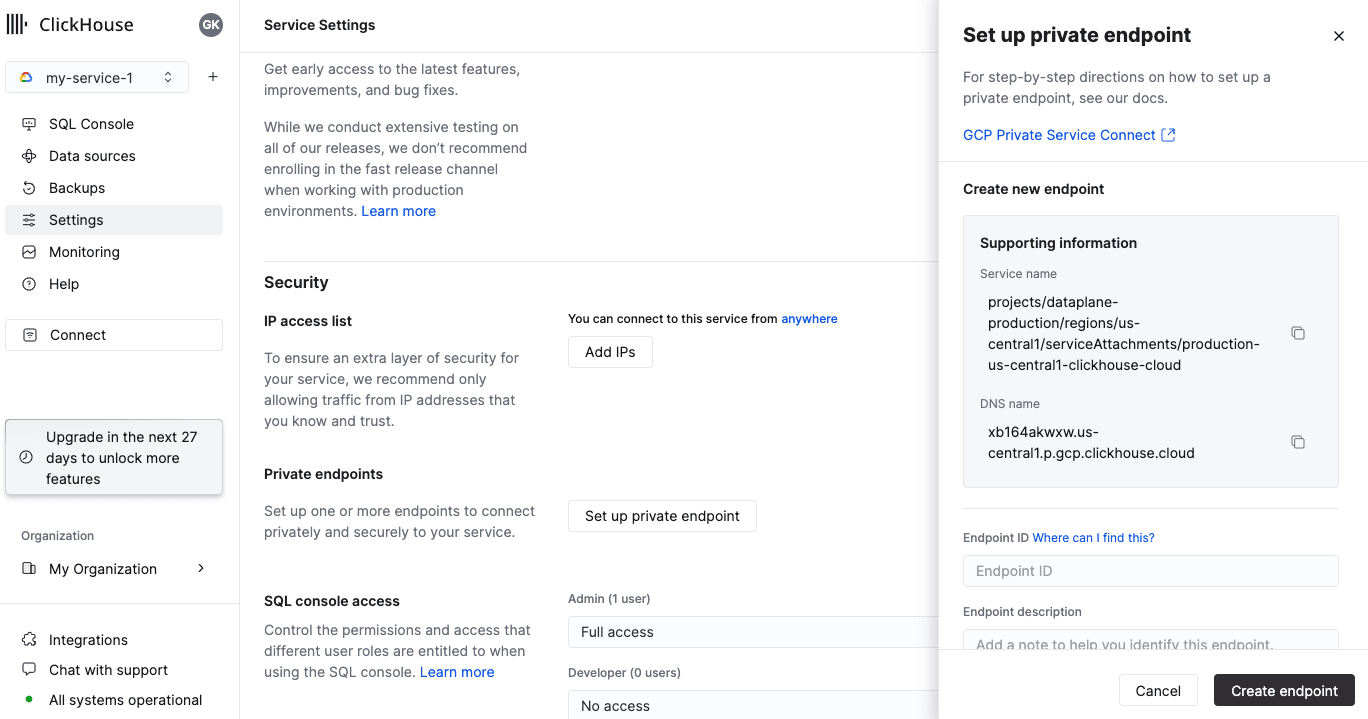
In the ClickHouse Cloud console, open the service that you would like to connect via Private Service Connect, then open the Settings menu. Click on the Set up private endpoint button. Make a note of the Service name (endpointServiceId) and DNS name (privateDnsHostname). You’ll use them in the next steps.
Option 2: API
Obtain GCP service attachment and DNS name for Private Service Connect:
curl --silent --user "${KEY_ID:?}:${KEY_SECRET:?}" "https://api.clickhouse.cloud/v1/organizations/${ORG_ID:?}/services/${INSTANCE_ID:?}/privateEndpointConfig" | jq  .result
{
  "endpointServiceId": "projects/.../regions/us-central1/serviceAttachments/production-us-central1-clickhouse-cloud",
  "privateDnsHostname": "xxxxxxxxxx.us-central1.p.gcp.clickhouse.cloud"
}
Make a note of the endpointServiceId and privateDnsHostname. You’ll use them in the next steps.
Create service endpoint
In this section, you’ll create a service endpoint.
Adding a private service connection
First, you’ll create a Private Service Connection.
Option 1: Using Google Cloud console
In the Google Cloud console, navigate to Network services -> Private Service Connect.
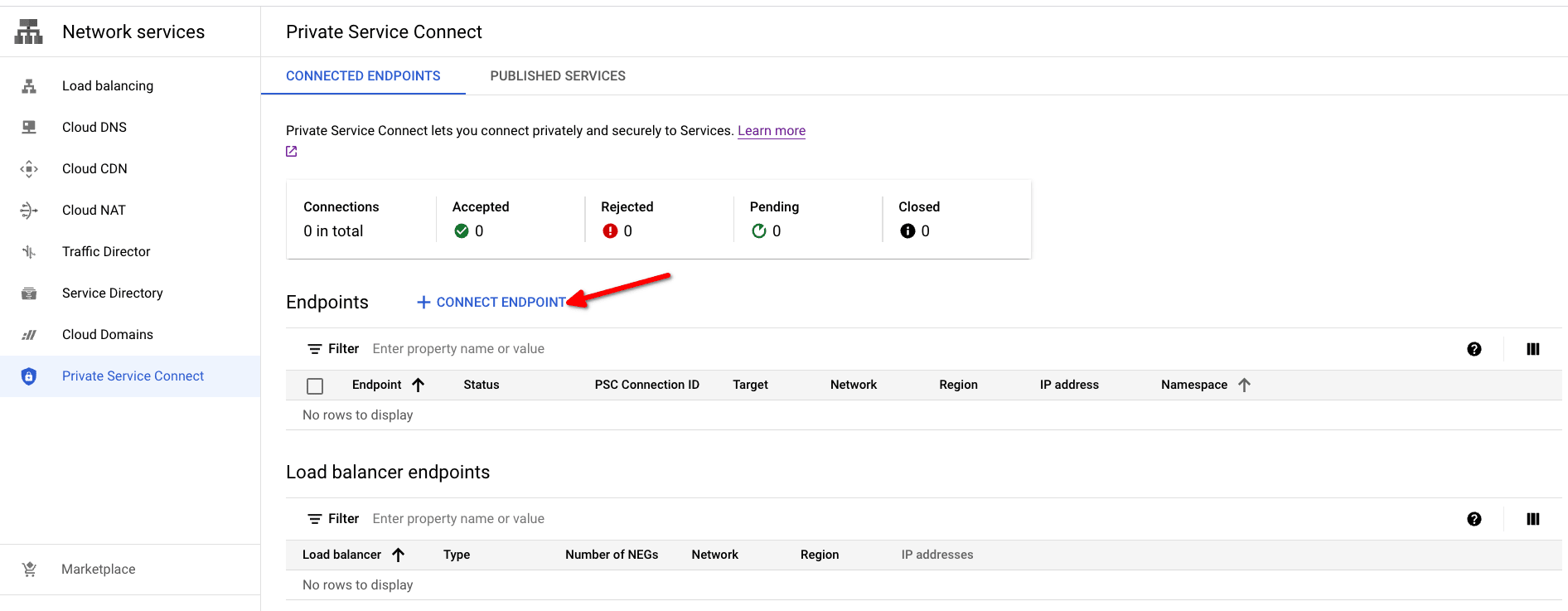
Open the Private Service Connect creation dialog by clicking on the Connect Endpoint button.
- Target: use Published service
- Target service: use
endpointServiceIdAPI orService nameconsole from Obtain GCP service attachment for Private Service Connect step. - Endpoint name: set a name for the PSC Endpoint name.
- Network/Subnetwork/IP address: Choose the network you want to use for the connection. You will need to create an IP address or use an existing one for the Private Service Connect endpoint. In our example, we pre-created an address with the name your-ip-address and assigned IP address
10.128.0.2. - To make the endpoint available from any region, you can enable the Enable global access checkbox.
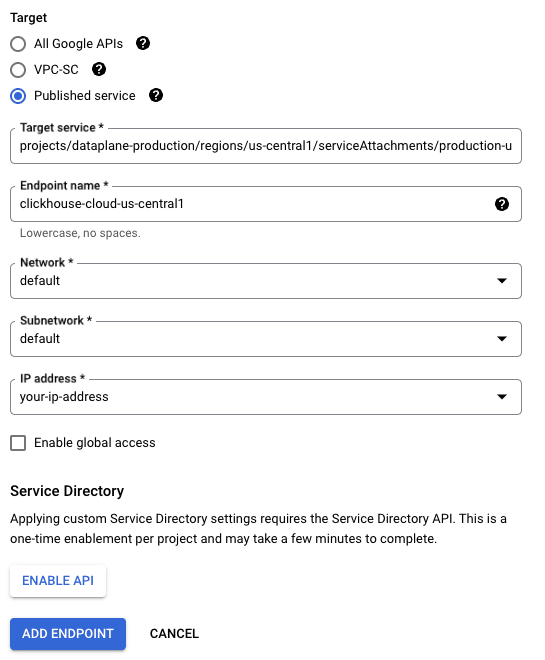
To create the PSC Endpoint, use the ADD ENDPOINT button.
The Status column will change from Pending to Accepted once the connection is approved.

Copy PSC Connection ID; you’ll use it as Endpoint ID in the next steps.
Option 2: Using Terraform
provider "google" {
  project = "my-gcp-project"
  region  = "us-central1"
}

variable "region" {
  type    = string
  default = "us-central1"
}

variable "subnetwork" {
  type = string
  default = "https://www.googleapis.com/compute/v1/projects/my-gcp-project/regions/us-central1/subnetworks/default"
}

variable "network" {
  type = string
  default = "https://www.googleapis.com/compute/v1/projects/my-gcp-project/global/networks/default"
}

resource "google_compute_address" "psc_endpoint_ip" {
  address      = "10.128.0.2"
  address_type = "INTERNAL"
  name         = "your-ip-address"
  purpose      = "GCE_ENDPOINT"
  region       = var.region
  subnetwork   = var.subnetwork
}

resource "google_compute_forwarding_rule" "clickhouse_cloud_psc" {
  ip_address            = google_compute_address.psc_endpoint_ip.self_link
  name                  = "ch-cloud-${var.region}"
  network               = var.network
  region                = var.region
  load_balancing_scheme = ""
  # service attachment
  target = "https://www.googleapis.com/compute/v1/$TARGET" # See below in notes
}

output "psc_connection_id" {
  value       = google_compute_forwarding_rule.clickhouse_cloud_psc.psc_connection_id
  description = "Add GCP PSC Connection ID to allow list on instance level."
}Set private DNS name for endpoint
You need to point the “DNS name”, taken from Obtain GCP service attachment for Private Service Connect step, to the GCP Private Service Connect endpoint IP address. This ensures that services/components within your VPC/Network can resolve it properly.
Add Endpoint ID to ClickHouse Cloud organization
Option 1: ClickHouse Cloud console
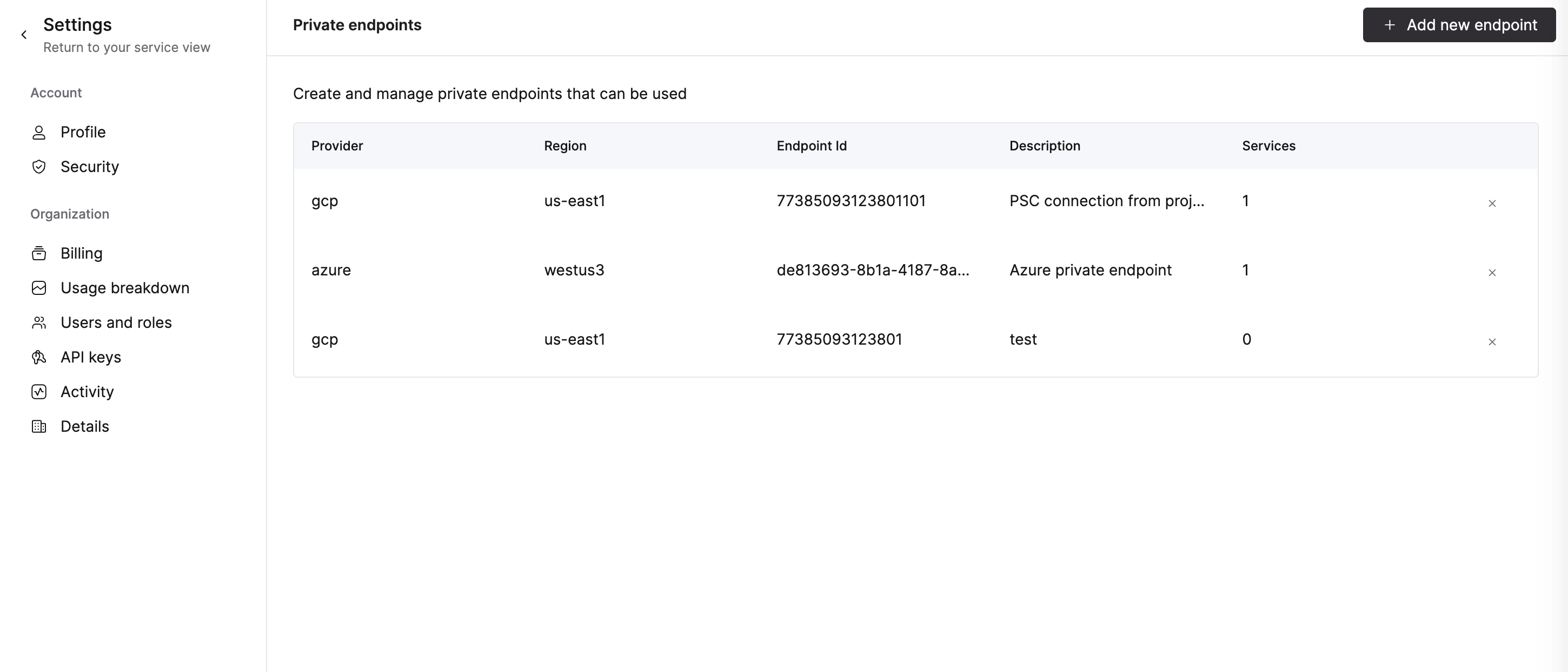
To add an endpoint to your organization, proceed to the Add “Endpoint ID” to ClickHouse service allow list step. Adding the PSC Connection ID using the ClickHouse Cloud console to the service allow list automatically adds it to the organization.
To remove an endpoint, open Organization details -> Private Endpoints and click the delete button to remove the endpoint.
Option 2: API
Set these environment variables before running any commands:
Replace ENDPOINT_ID below with the value from Endpoint ID from the Adding a Private Service Connection step.
To add an endpoint, run:
cat <<EOF | tee pl_config_org.json
{
  "privateEndpoints": {
    "add": [
      {
        "cloudProvider": "gcp",
        "id": "${ENDPOINT_ID:?}",
        "description": "A GCP private endpoint",
        "region": "${REGION:?}"
      }
    ]
  }
}
EOF
To remove an endpoint, run:
cat <<EOF | tee pl_config_org.json
{
  "privateEndpoints": {
    "remove": [
      {
        "cloudProvider": "gcp",
        "id": "${ENDPOINT_ID:?}",
        "region": "${REGION:?}"
      }
    ]
  }
}
EOF
Add/remove a Private Endpoint for an organization:
curl --silent --user "${KEY_ID:?}:${KEY_SECRET:?}" -X PATCH -H "Content-Type: application/json" "https://api.clickhouse.cloud/v1/organizations/${ORG_ID:?}" -d @pl_config_org.jsonAdd “Endpoint ID” to ClickHouse service allow list
You need to add an Endpoint ID to the allow-list for each instance that should be available using Private Service Connect.
Option 1: ClickHouse Cloud console
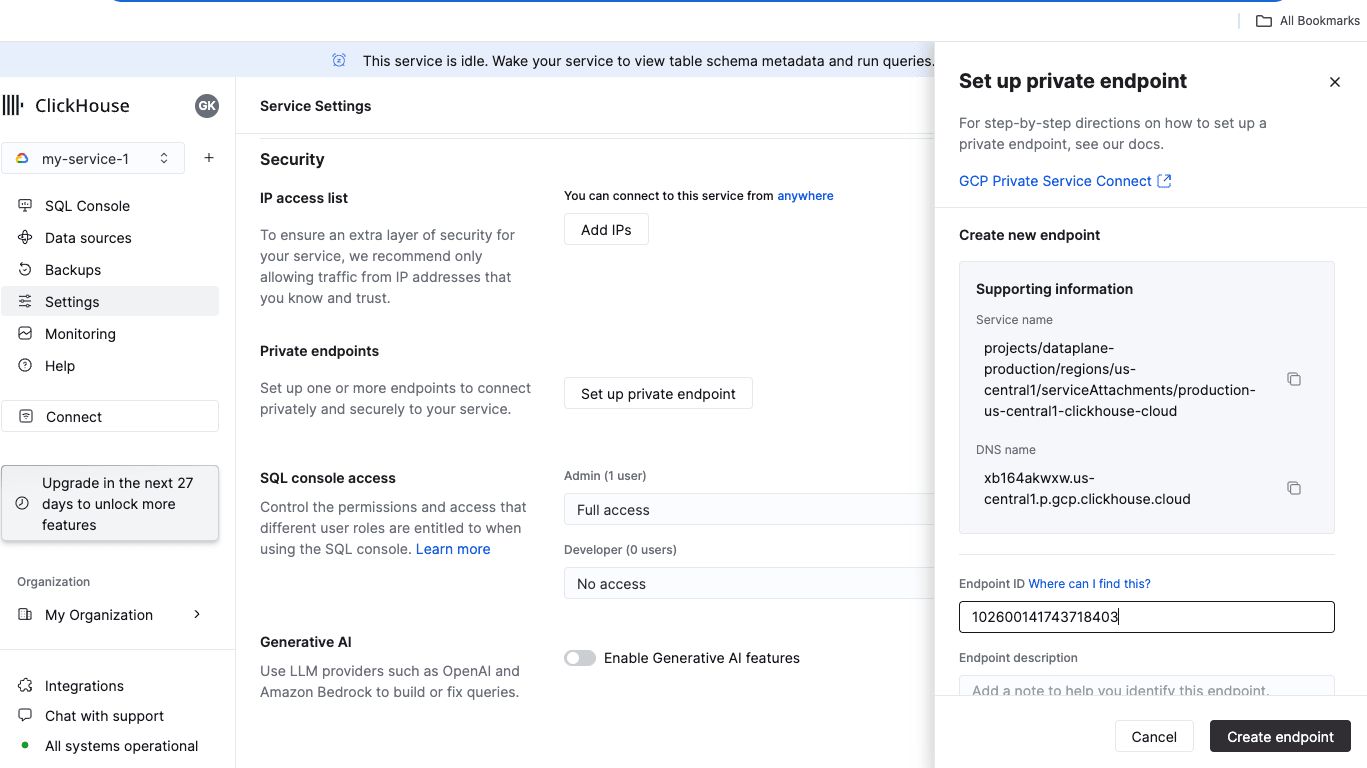
In the ClickHouse Cloud console, open the service that you would like to connect via Private Service Connect, then navigate to Settings. Enter the Endpoint ID retrieved from the Adding a Private Service Connection step. Click Create endpoint.
Option 2: API
Set these environment variables before running any commands:
Replace ENDPOINT_ID below with the value from Endpoint ID from the Adding a Private Service Connection step.
Execute it for each service that should be available using Private Service Connect.
To add:
cat <<EOF | tee pl_config.json
{
  "privateEndpointIds": {
    "add": [
      "${ENDPOINT_ID}"
    ]
  }
}
EOF
To remove:
cat <<EOF | tee pl_config.json
{
  "privateEndpointIds": {
    "remove": [
      "${ENDPOINT_ID}"
    ]
  }
}
EOF
curl --silent --user "${KEY_ID:?}:${KEY_SECRET:?}" -X PATCH -H "Content-Type: application/json" "https://api.clickhouse.cloud/v1/organizations/${ORG_ID:?}/services/${INSTANCE_ID:?}" -d @pl_config.json | jqAccessing instance using Private Service Connect
Each service with Private Service Connect enabled has a public and private endpoint. To connect using Private Service Connect, you need to use the private endpoint, which is the privateDnsHostname from the Obtain GCP service attachment for Private Service Connect step.
Getting private DNS hostname
Option 1: ClickHouse Cloud console
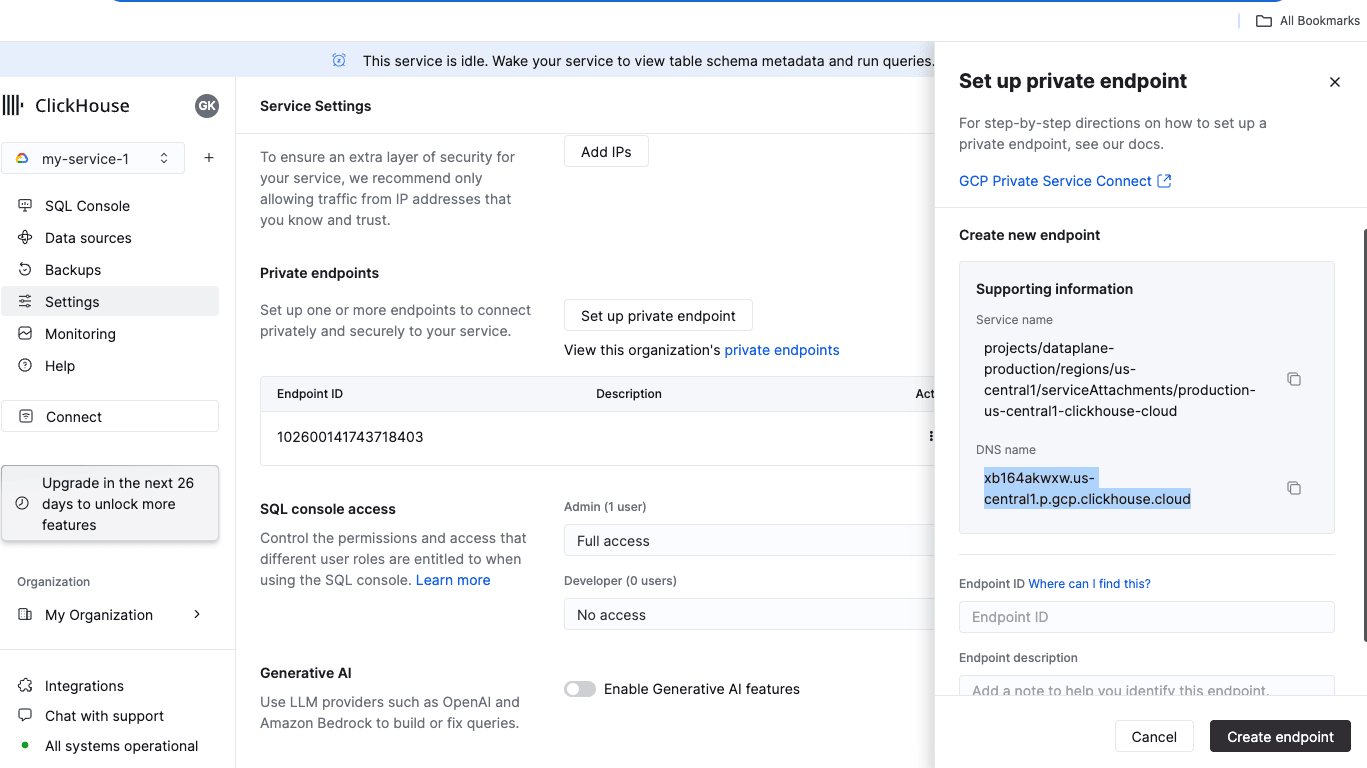
In the ClickHouse Cloud console, navigate to Settings. Click on the Set up private endpoint button. In the opened flyout, copy the DNS Name.
Option 2: API
curl --silent --user "${KEY_ID:?}:${KEY_SECRET:?}" "https://api.clickhouse.cloud/v1/organizations/${ORG_ID:?}/services/${INSTANCE_ID:?}/privateEndpointConfig" | jq .result{
...
"privateDnsHostname": "xxxxxxx.<region code>.p.gcp.clickhouse.cloud"
}In this example, connection to the xxxxxxx.yy-xxxxN.p.gcp.clickhouse.cloud hostname will be routed to Private Service Connect. Meanwhile, xxxxxxx.yy-xxxxN.gcp.clickhouse.cloud will be routed over the internet.
Troubleshooting
Test DNS setup
DNS_NAME - Use privateDnsHostname from Obtain GCP service attachment for Private Service Connect step
nslookup $DNS_NAMENon-authoritative answer:
...
Address: 10.128.0.2Connection reset by peer
- Most likely, the Endpoint ID wasn’t added to the service allow-list. Revisit the Add endpoint ID to services allow-list step.
Test connectivity
If you have problems connecting using a PSC link, check your connectivity using openssl. Make sure the Private Service Connect endpoint status is Accepted:
OpenSSL should be able to connect (see CONNECTED in the output). errno=104 is expected.
DNS_NAME - Use privateDnsHostname from Obtain GCP service attachment for Private Service Connect step
openssl s_client -connect ${DNS_NAME}:9440CONNECTED(00000003)
write:errno=104
---
no peer certificate available
---
No client certificate CA names sent
---
SSL handshake has read 0 bytes and written 335 bytes
Verification: OK
---
New, (NONE), Cipher is (NONE)
Secure Renegotiation IS NOT supported
Compression: NONE
Expansion: NONE
No ALPN negotiated
Early data was not sent
Verify return code: 0 (ok)Checking endpoint filters
REST API
curl --silent --user "${KEY_ID:?}:${KEY_SECRET:?}" -X GET -H "Content-Type: application/json" "https://api.clickhouse.cloud/v1/organizations/${ORG_ID:?}/services/${INSTANCE_ID:?}" | jq .result.privateEndpointIds
[
  "102600141743718403"
]
Connecting to a remote database
According to the GCP Private Service Connect documentation:
Service-oriented design: Producer services are published through load balancers that expose a single IP address to the consumer VPC network. Consumer traffic that accesses producer services is unidirectional and can only access the service IP address, rather than having access to an entire peered VPC network.
To connect MySQL or PostgreSQL table functions in ClickHouse Cloud to a database hosted in your GCP VPC, configure your GCP VPC firewall rules to allow connections from ClickHouse Cloud. Check the default egress IP addresses for ClickHouse Cloud regions, along with the available static IP addresses.
More information
For more detailed information, visit cloud.google.com/vpc/docs/configure-private-service-connect-services.