

 Set up docs MCP
The chat surface in ClickHouse Agents handles conversations, branching, and sharing.
Conversations
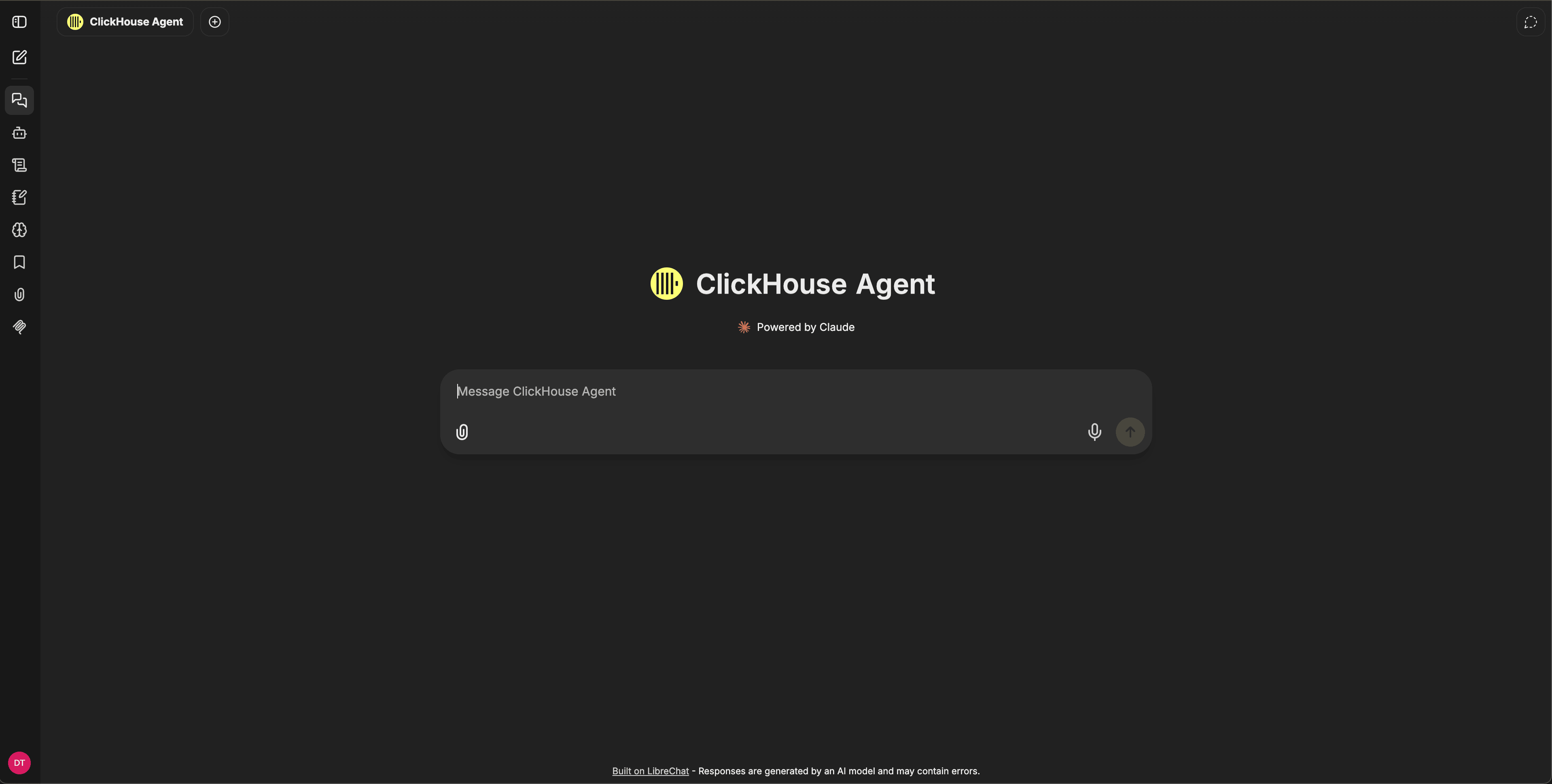
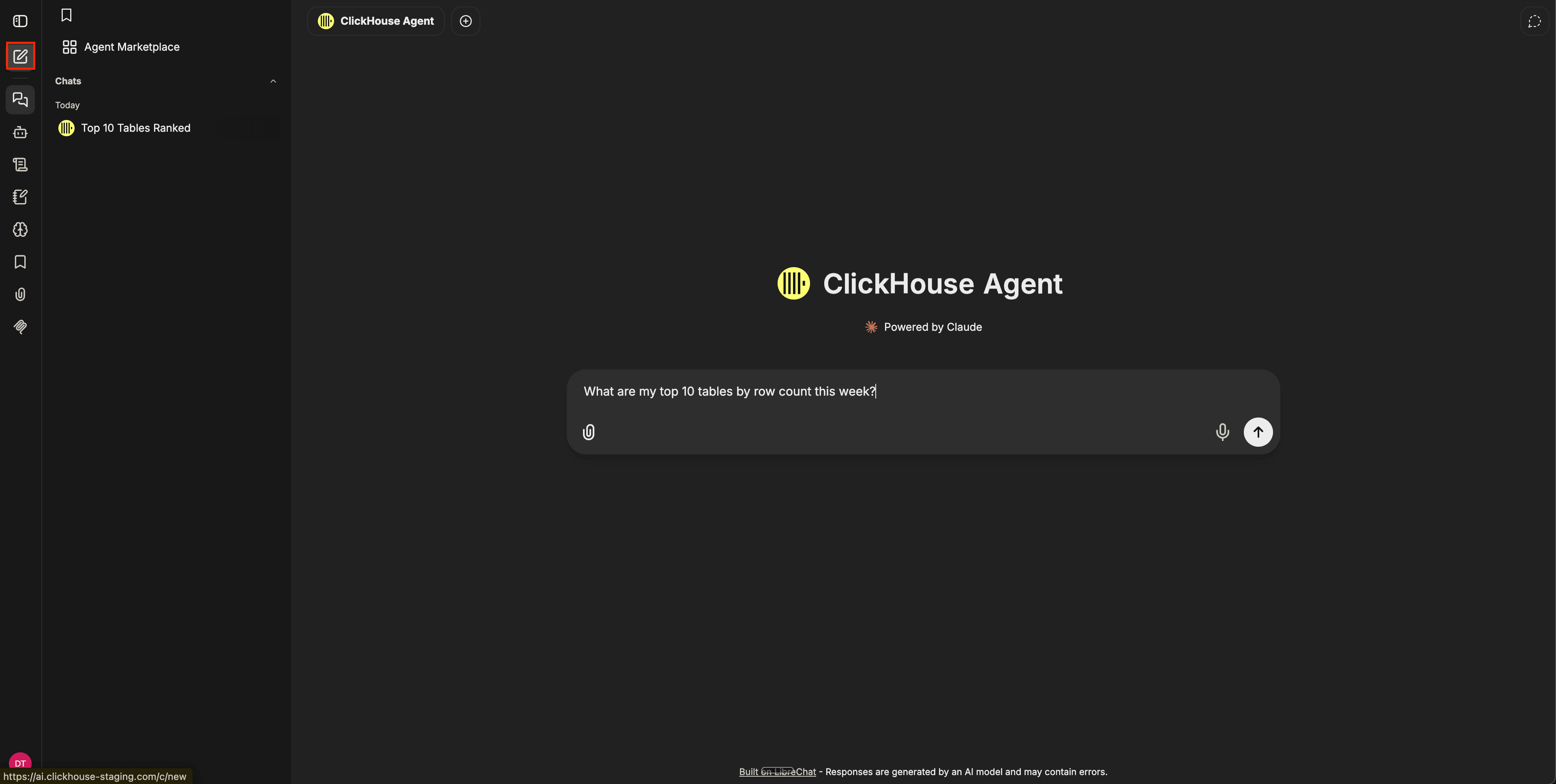
Start a new conversation by clicking the compose icon in the left navigation. Select the agent you wish to use from the Agent selector dialogue at the top left of the conversation window - by default the ClickHouse Agent is selected. You can now type your message in the composer, and press send. Each conversation is saved to your sidebar history and can be reopened, renamed, or deleted later.
You can edit any of your messages in place, and the agent will regenerate its response from that point in the conversation history. You can also regenerate the agent’s last response only, without re-sending your message.
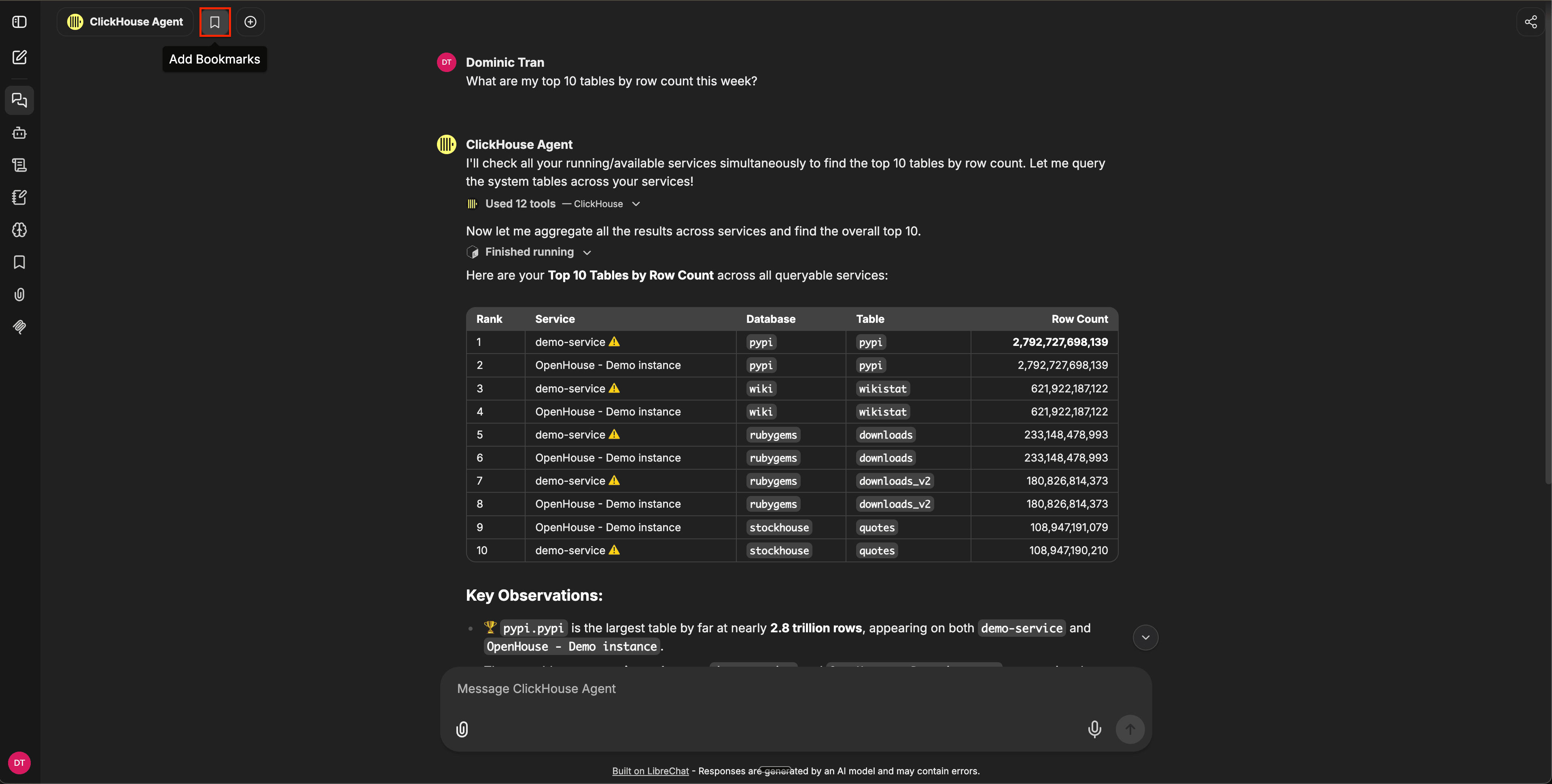
Bookmarks
Bookmark a message or a whole conversation to flag it for quick retrieval. Bookmarks are private to you and survive conversation renames.
Pinned conversations
Pin a conversation to keep it at the top of the sidebar, separate from the date-grouped history below. Open the conversation’s options menu (the three-dot icon) in the sidebar and select Pin. Pinned conversations collect in a Pinned section above the Today, Yesterday, and older groups.
To unpin, open the same menu and select Unpin.
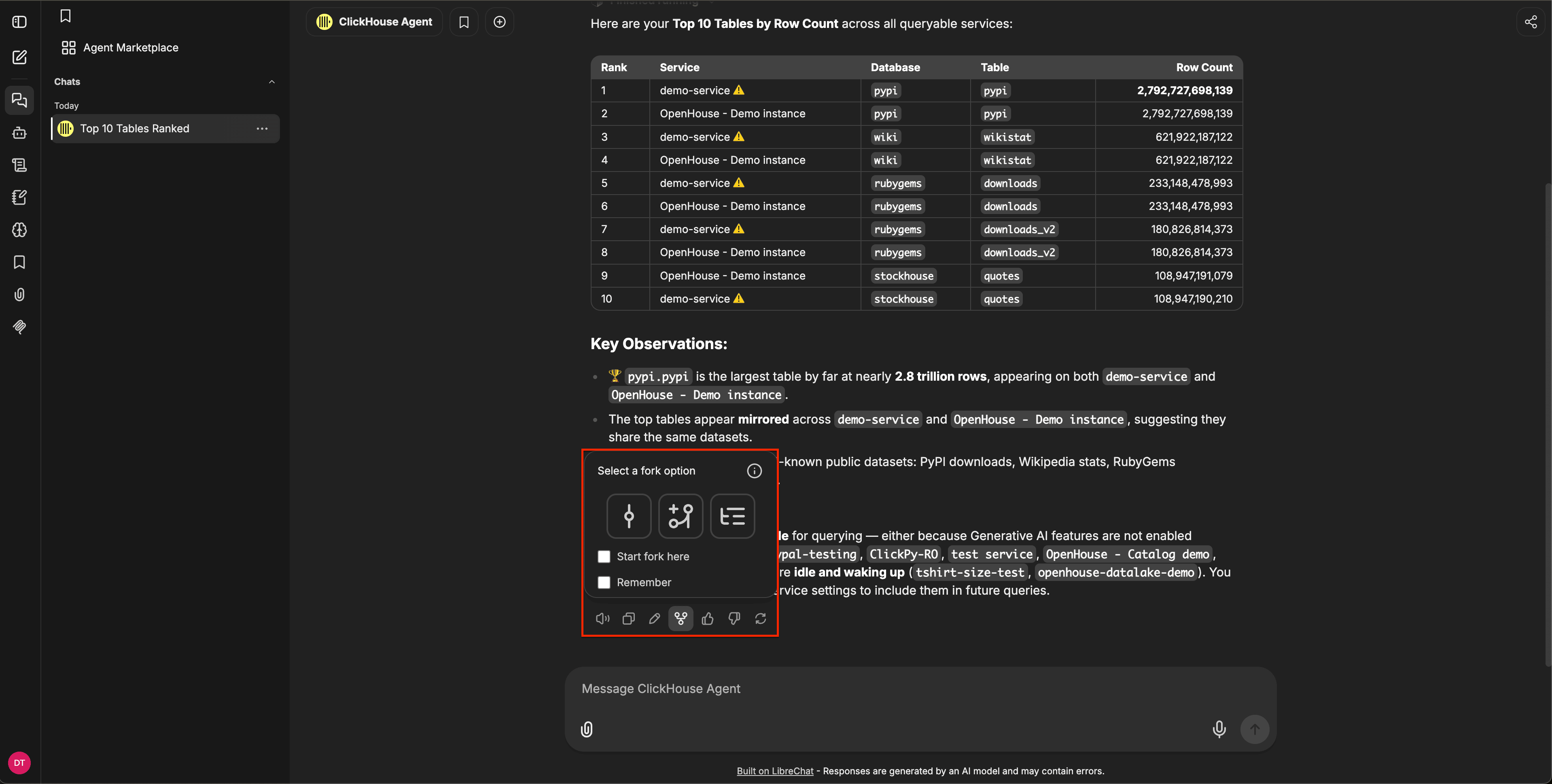
Forking
Forking creates a new conversation branched from a specific message. You can use it to explore an alternative path without disrupting the original thread. There are three fork modes available:
- Visible messages only - lets you copy the direct path to the forked message.
- Include related branches - lets you copy the main path plus any existing branches.
- Include all to here - lets you copy everything up to the forked message.
Forked conversations are independent, so changes don’t sync back to the original.
Sharing chats
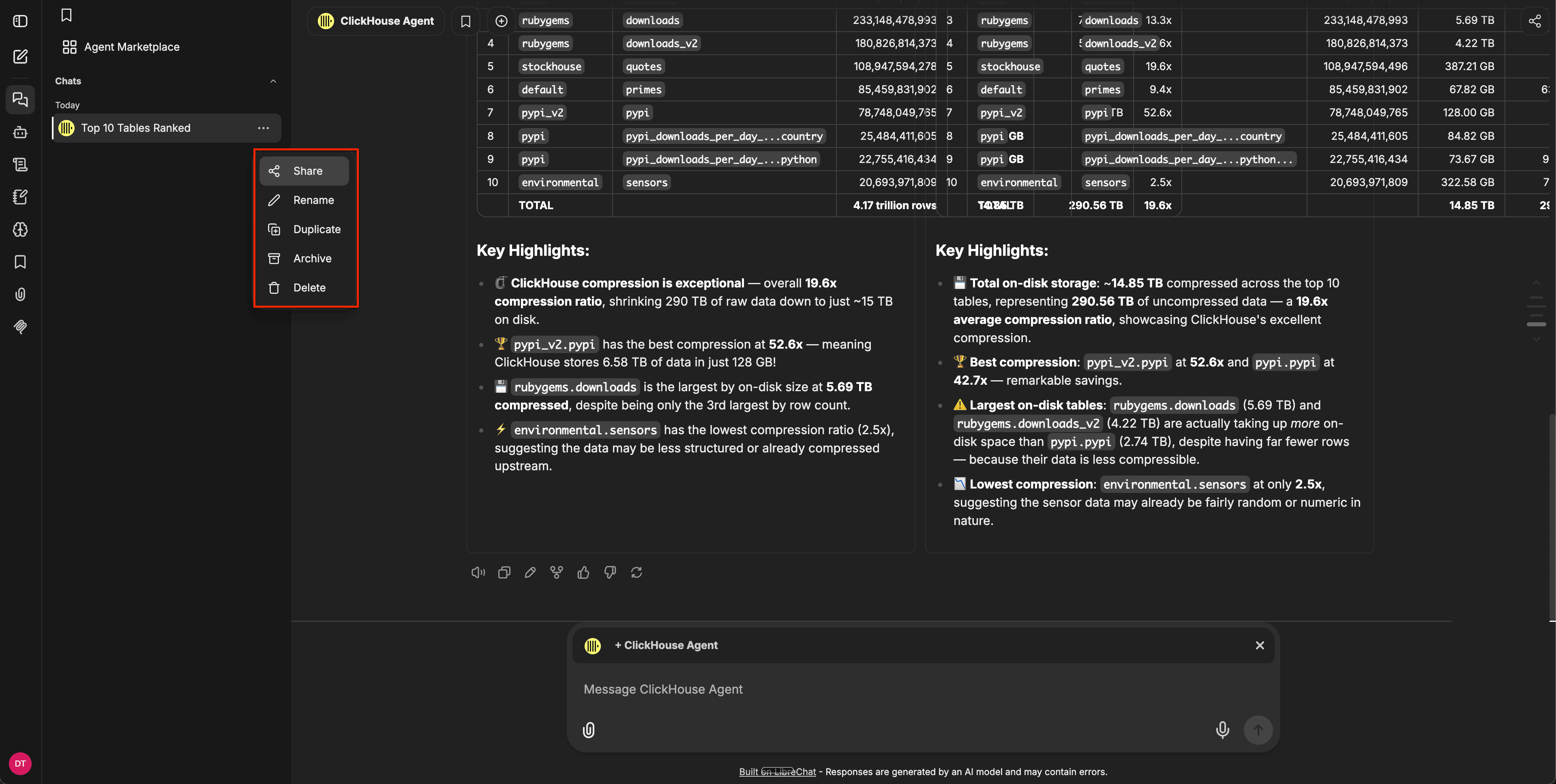
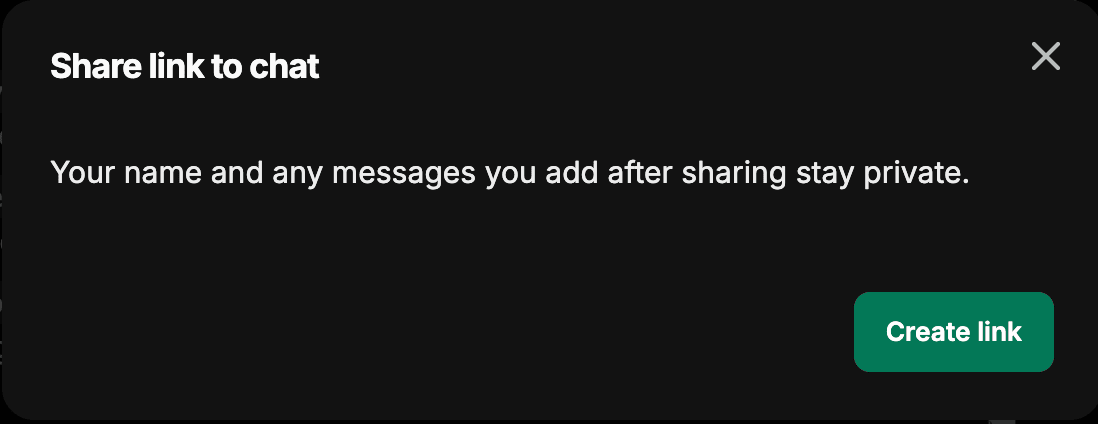
Generate a shareable link for any conversation to send it to a teammate or save it for reference. Recipients see a read-only view, including artifacts and visible branches. You can revoke a link from the sharing dashboard at any time.
Edits to existing messages appear in the shared view; messages added after the link was generated do not.
Anyone viewing a shared link can pick up the conversation in their own account by clicking Continue this chat. This copies the conversation — including the branch they’re viewing — into their history as a new, private conversation, leaving your original untouched.
To share a conversation, open its menu in the sidebar and select Share:
Then click Create link in the share dialog:
Keyboard shortcuts
Open the keyboard shortcuts reference with Cmd+Shift+/ (Ctrl+Shift+/ on Windows and Linux), or from the account menu under Help → Keyboard shortcuts. Every shortcut is customizable: click a row in the dialog to record a new combination, and use Reset all to defaults to revert.
The default shortcuts are:
| Action | macOS | Windows and Linux |
|---|---|---|
| Show keyboard shortcuts | Cmd+Shift+/ |
Ctrl+Shift+/ |
| New chat | Cmd+Shift+O |
Ctrl+Shift+O |
| Focus chat input | Shift+Esc |
Shift+Esc |
| Upload file | Cmd+Shift+U |
Ctrl+Shift+U |
| Copy last response | Cmd+Shift+; |
Ctrl+Shift+; |
| Submit message | Cmd+Enter |
Ctrl+Enter |
| Toggle sidebar | Cmd+Shift+S |
Ctrl+Shift+S |
| Open model selector | Cmd+Shift+M |
Ctrl+Shift+M |
| Focus search | Cmd+/ |
Ctrl+/ |
| Open settings | Cmd+Shift+, |
Ctrl+Shift+, |
| Bookmark conversation | Cmd+Shift+B |
Ctrl+Shift+B |
| Stop generating | Cmd+Shift+X |
Ctrl+Shift+X |
| Regenerate response | Cmd+Shift+E |
Ctrl+Shift+E |
| Edit last message | Cmd+Shift+I |
Ctrl+Shift+I |
| Continue response | Cmd+Shift+C |
Ctrl+Shift+C |
| Copy last code block | Cmd+Shift+K |
Ctrl+Shift+K |
| Scroll to top | Cmd+Shift+Up |
Ctrl+Shift+Up |
| Scroll to bottom | Cmd+Shift+Down |
Ctrl+Shift+Down |
| Archive conversation | Cmd+Shift+L |
Ctrl+Shift+L |
| Delete conversation | Cmd+Shift+Backspace |
Ctrl+Shift+Backspace |
You can also assign your own shortcuts to open panels such as agents, prompts, files, and bookmarks — these have no default keys.